
Create a connector
On the top-right corner of the Connectors page, click on the + Connection button. The Create Connection wizard appears.
-
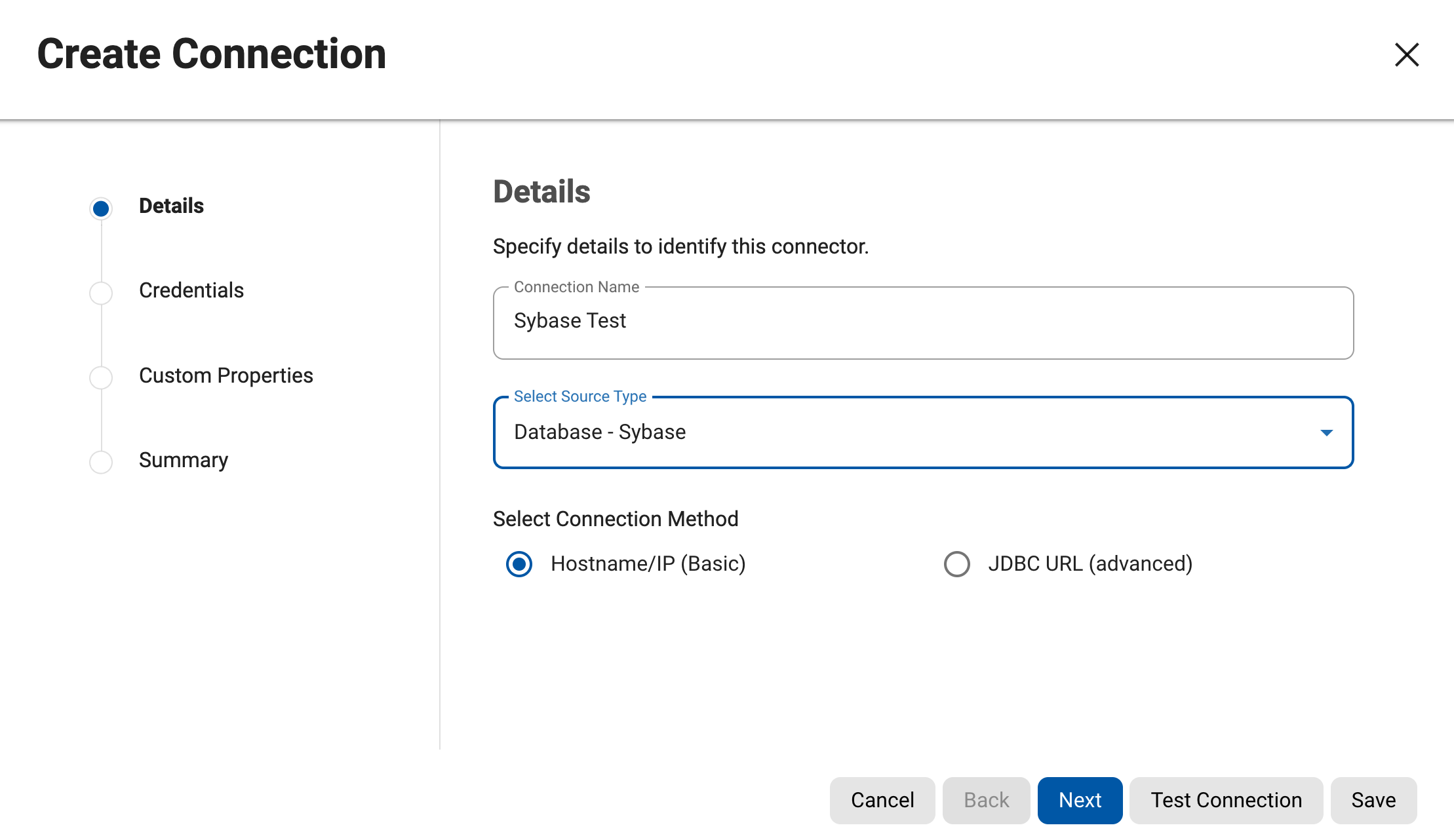
Details: input the following information:
-
Connector Name: The name of the connector.
-
Source Type: The type of data source (Oracle, Sybase, etc.). Each source type in this dropdown is preceded by the Meta Data Source (Database, File, or Mainframe).
-
Connection Mode (Oracle, MSSQL Server, and Sybase only) Choose a connection type:
-
Basic: Basic connection information.
-
Advanced: The full JDBC connect string including any database parameters.
-
-
Basic & Advanced mode is not available for all source types.
-
Credentials: Provide the connection information pertaining to the source type selected.
-
The fields that appear are specific to the Source Type you selected. If you need assistance determining these values, please contact your database administrator.
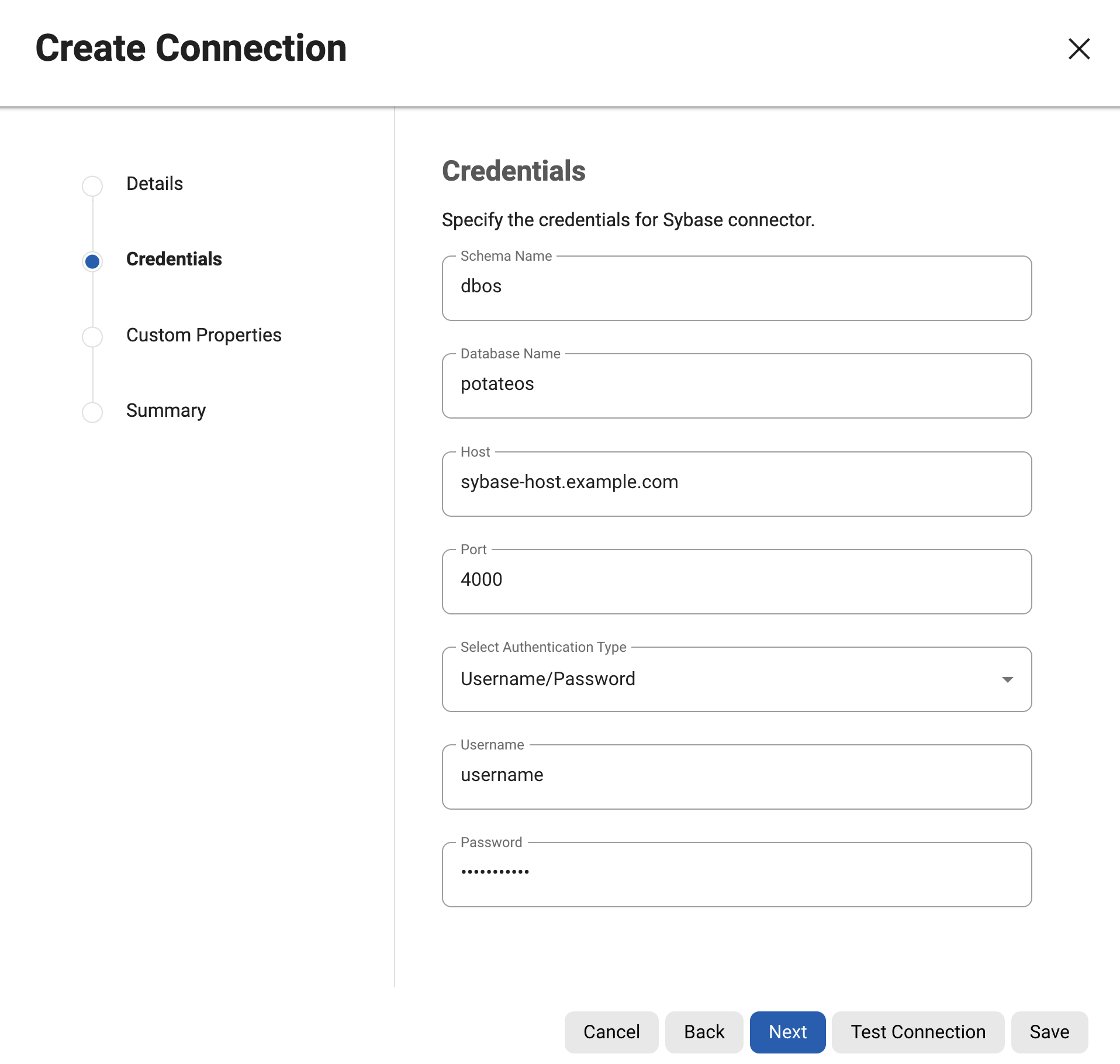
Credentials Step
-
-
Custom Properties: Upload the properties file (typically a Java properties file) to specify configurations for the JDBC connection.
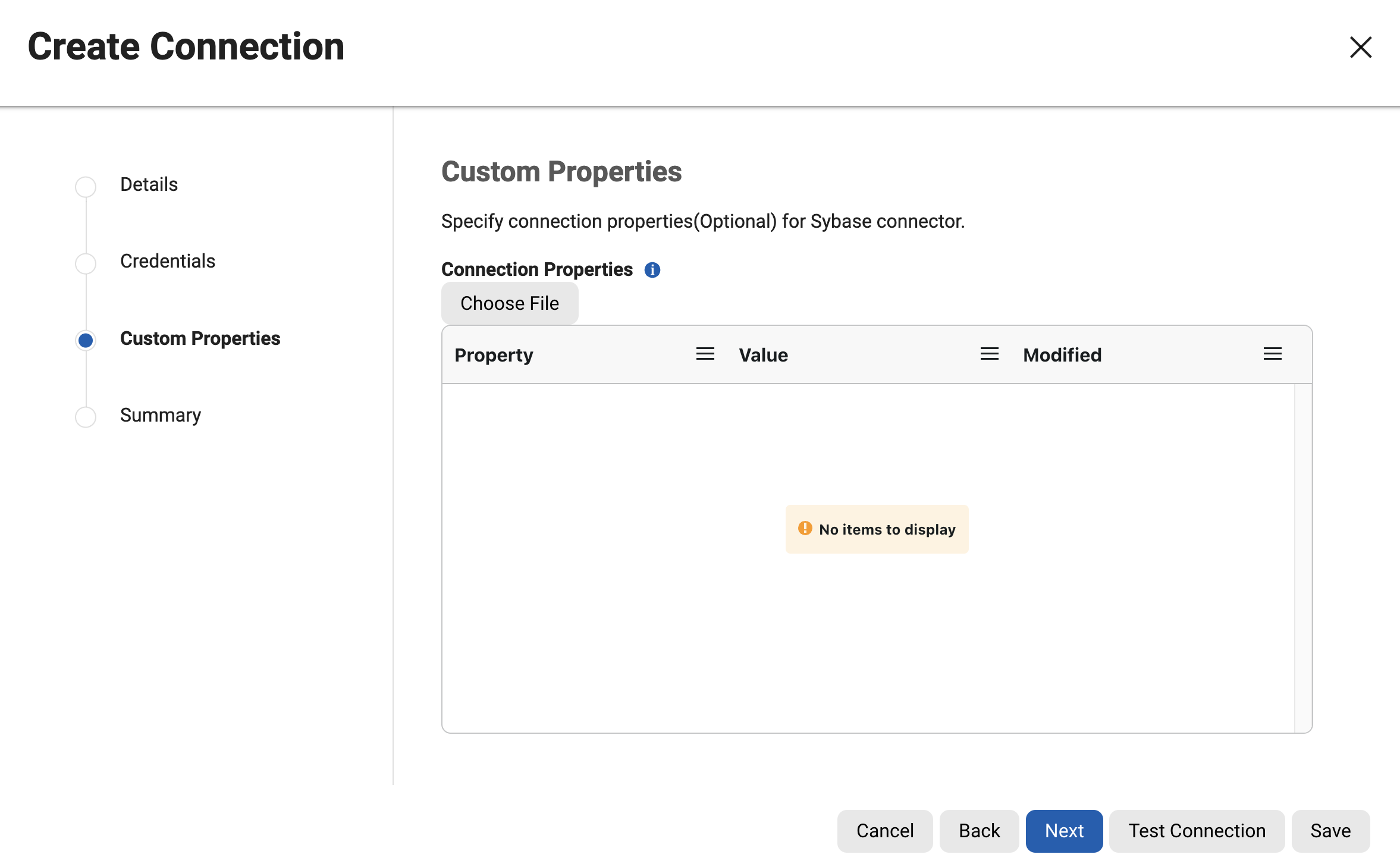
Custom Properties Step
-
Summary: This step provides comprehensive details of all the configurations provided. After verification of the present information, click Save.
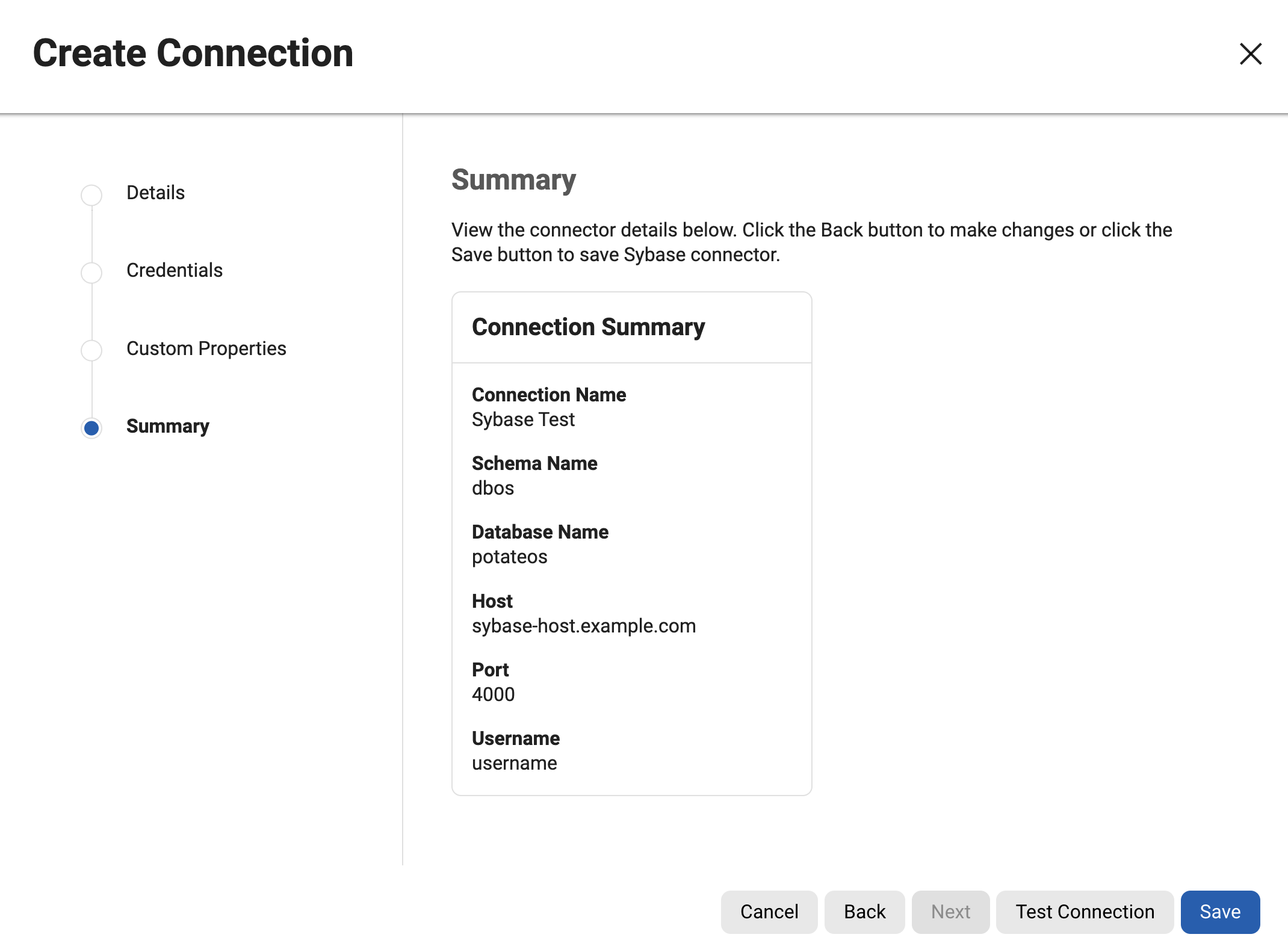
Summary Step
Editing a connector
Perform the following steps to edit a connector:
-
In the Connectors tab, click on either Edit under the action dropdown or directly click on the connector name link of the connector you want to edit on the connector grid.
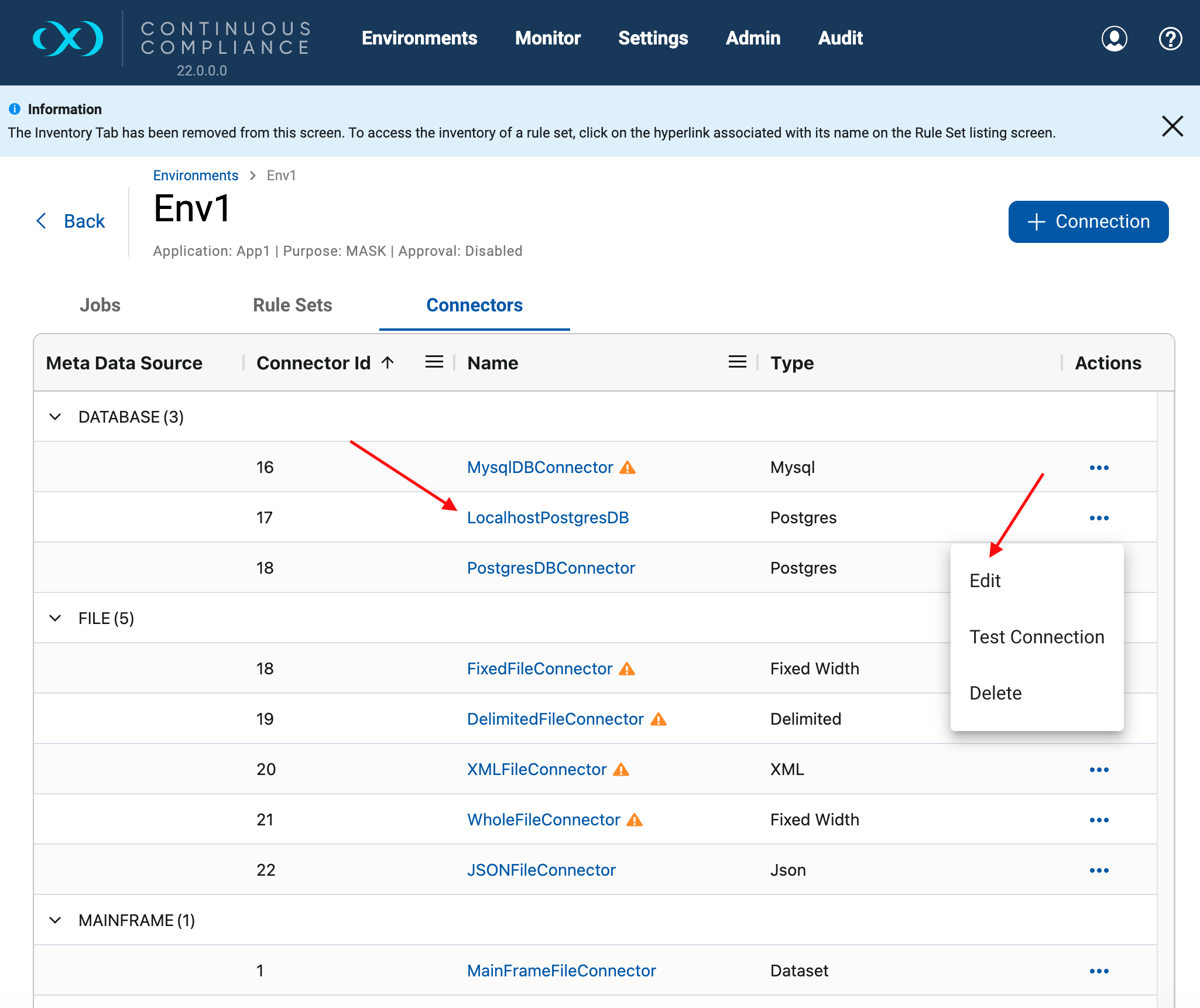
Connector Actions -
Change any information necessary across its steps. For more information on the fields refer Database Connector Fields.
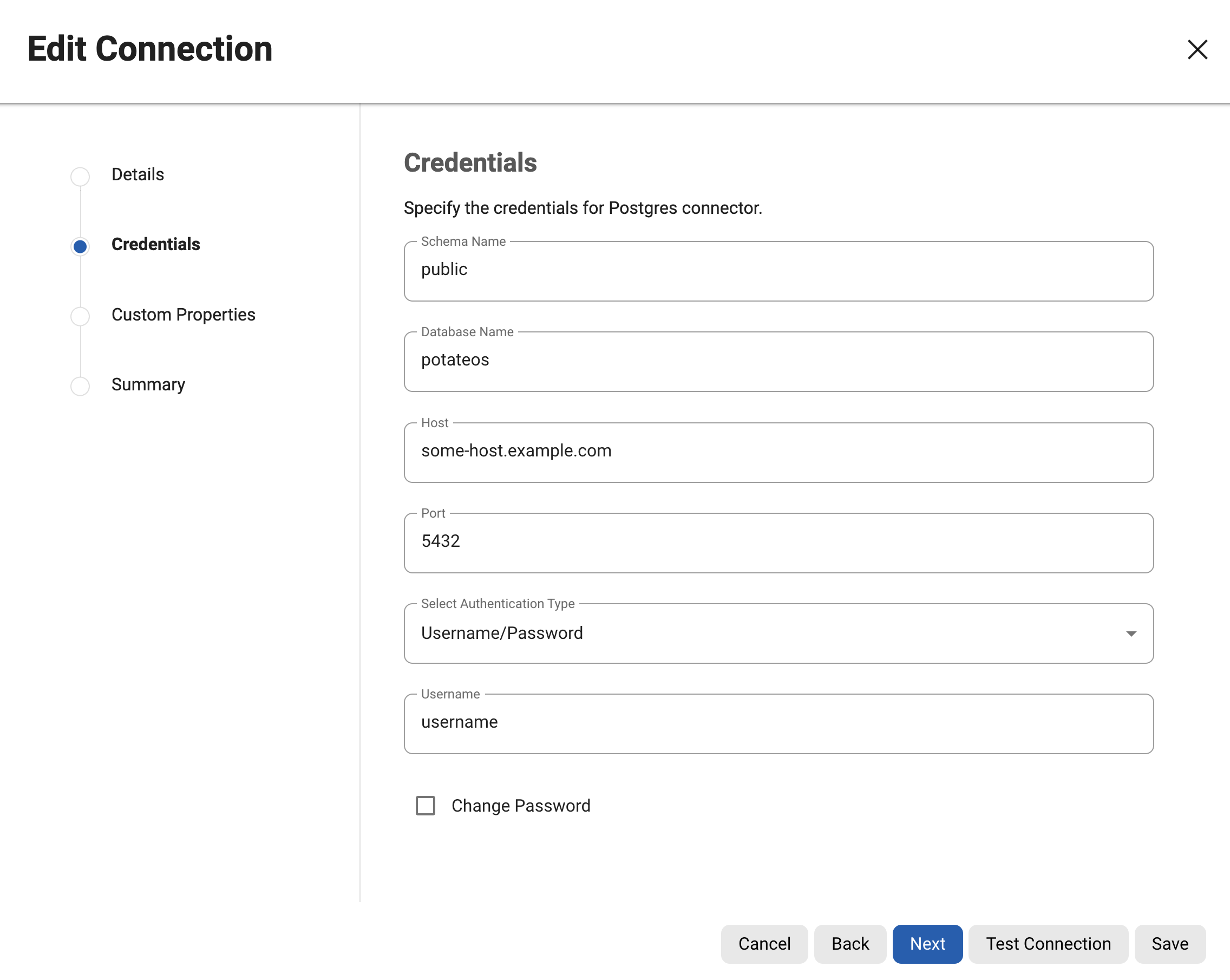
-
To change the password, select the checkbox next to Change Password
-
To change connection properties or upload a new one, select Choose File and upload the properties file in the Custom Properties Step.
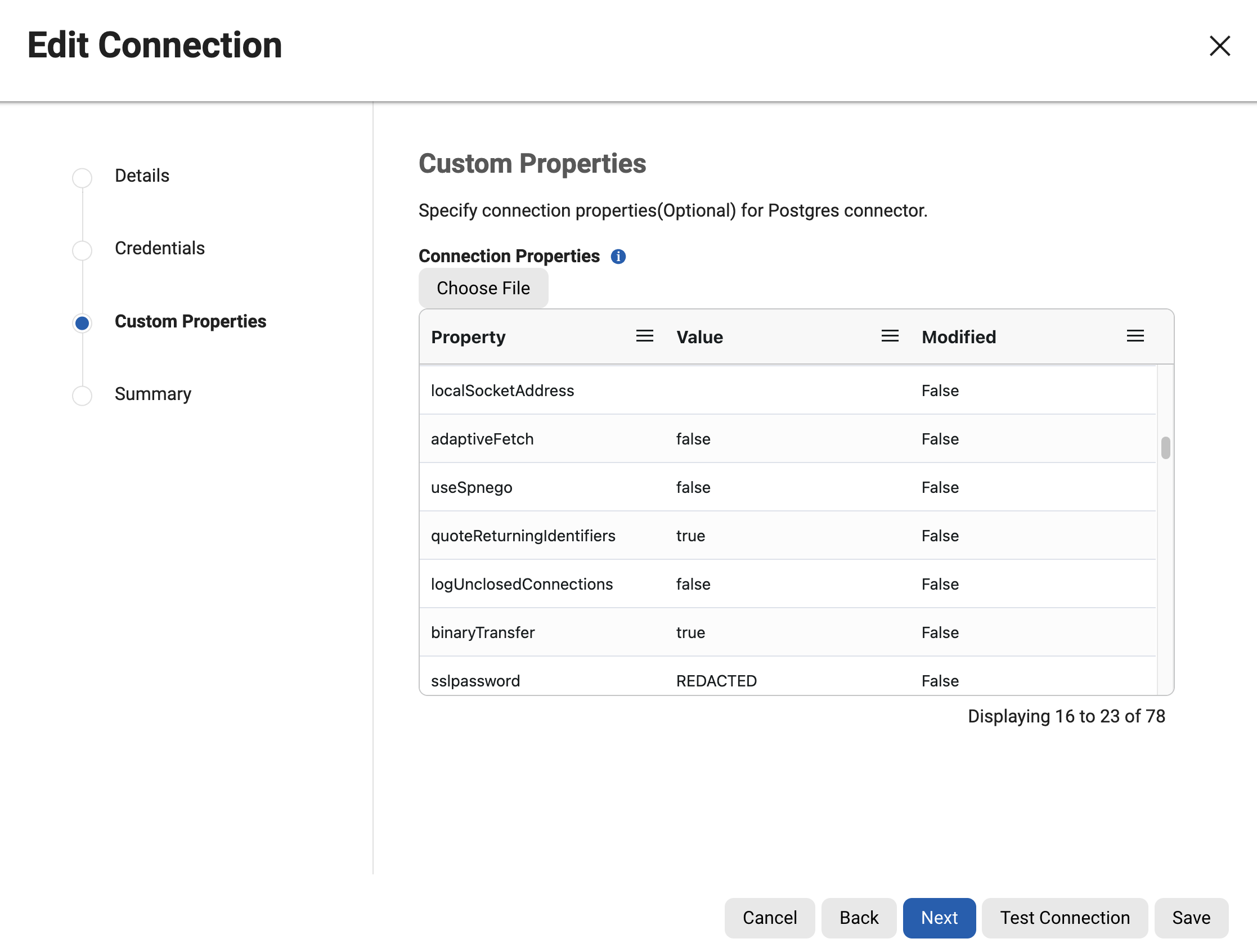
Custom Properties Step
-
Click Save or verify all details in the summary step then click Save.
Testing a connector
Testing a connector can be done while creating/editing the connector or from the grid.
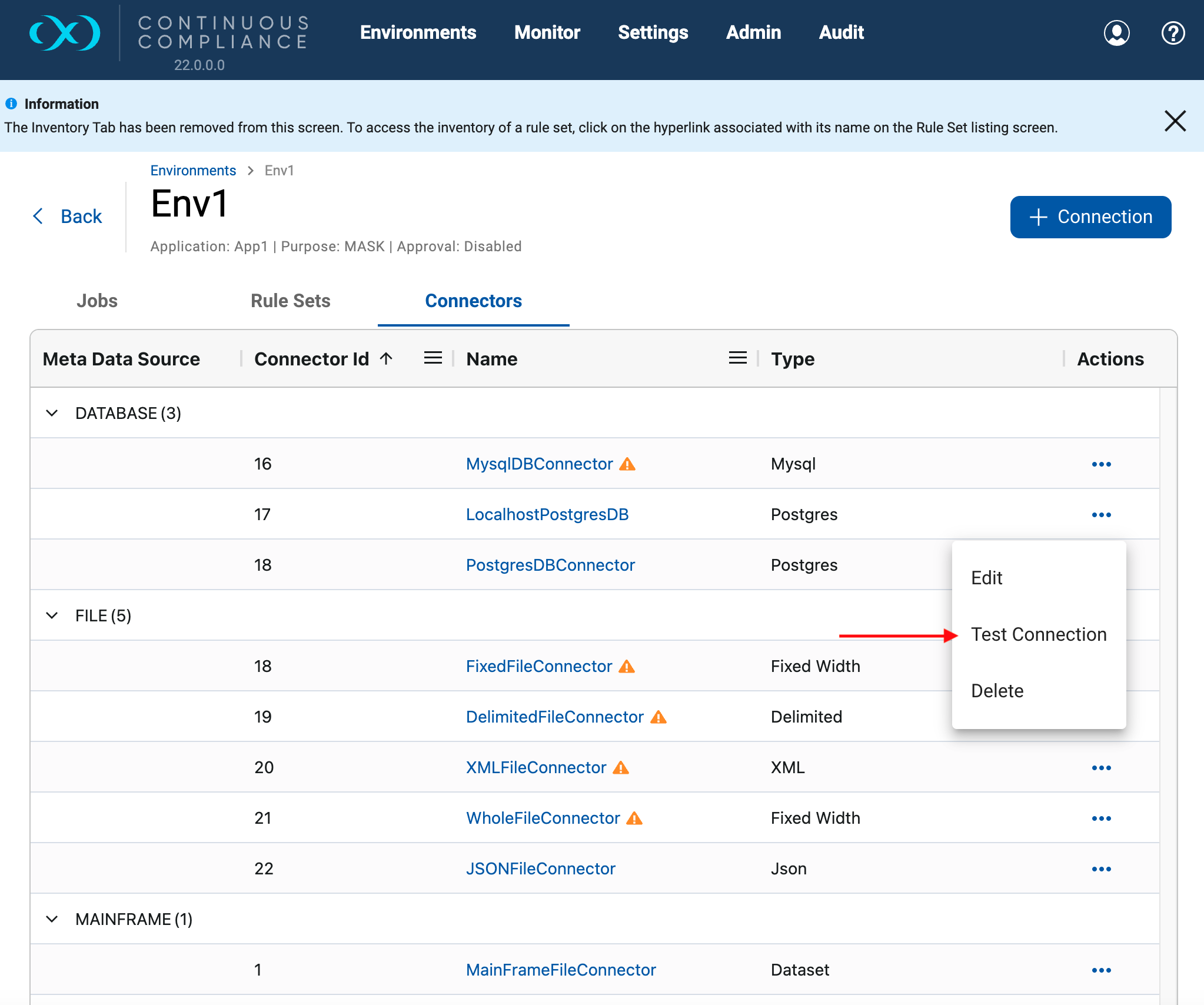
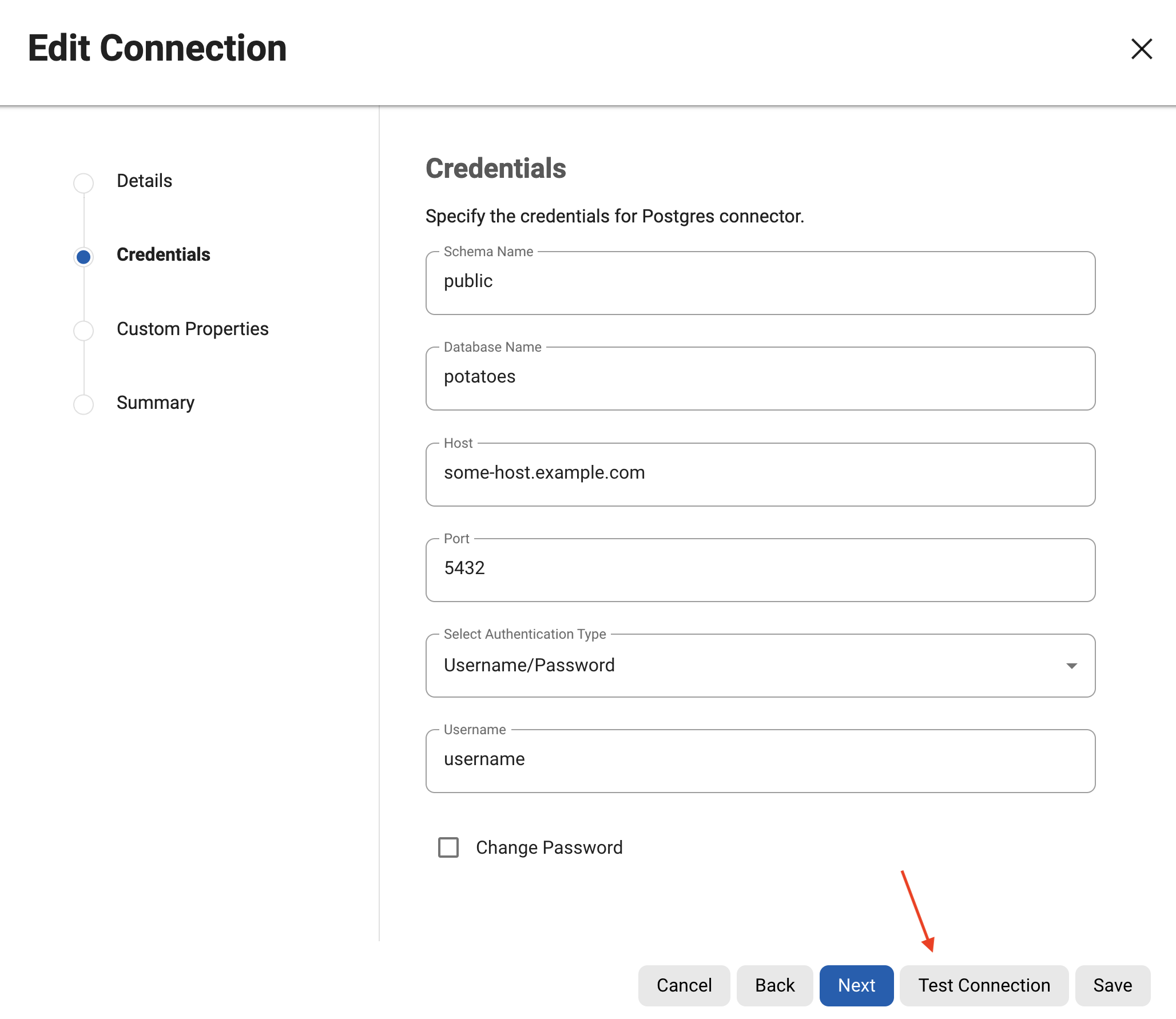
Test Connection in the wizard allows you to test the connection anytime, to check the validity of the connector information that was added.
When you click Test Connection, Delphix uses the information from the wizard to attempt a database connection. When finished, a status message appears indicating success or failure.
Deleting a connector
To delete a connector, click Delete under the action icon. When you delete a connector, you also delete its rule sets and inventory data.
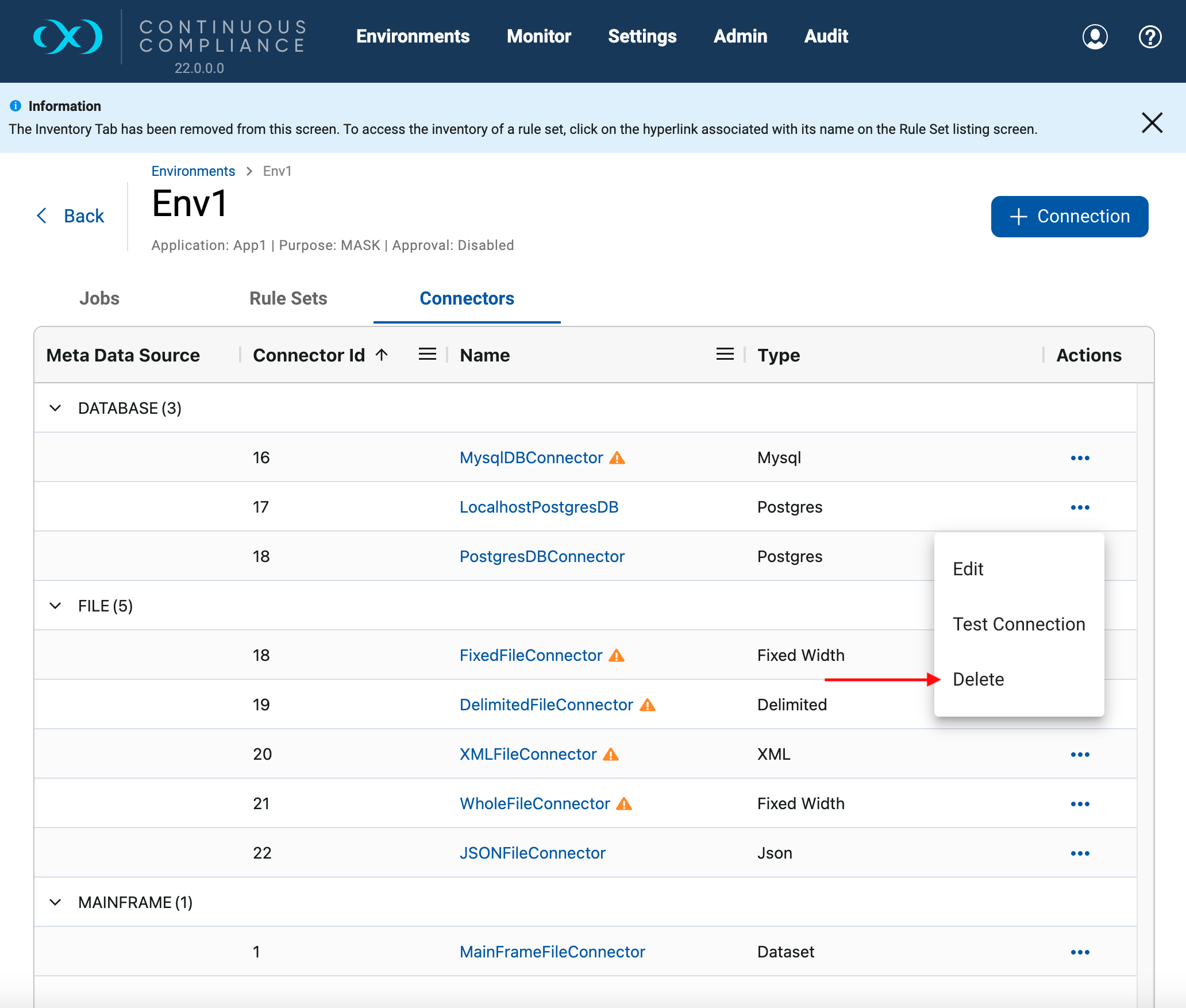
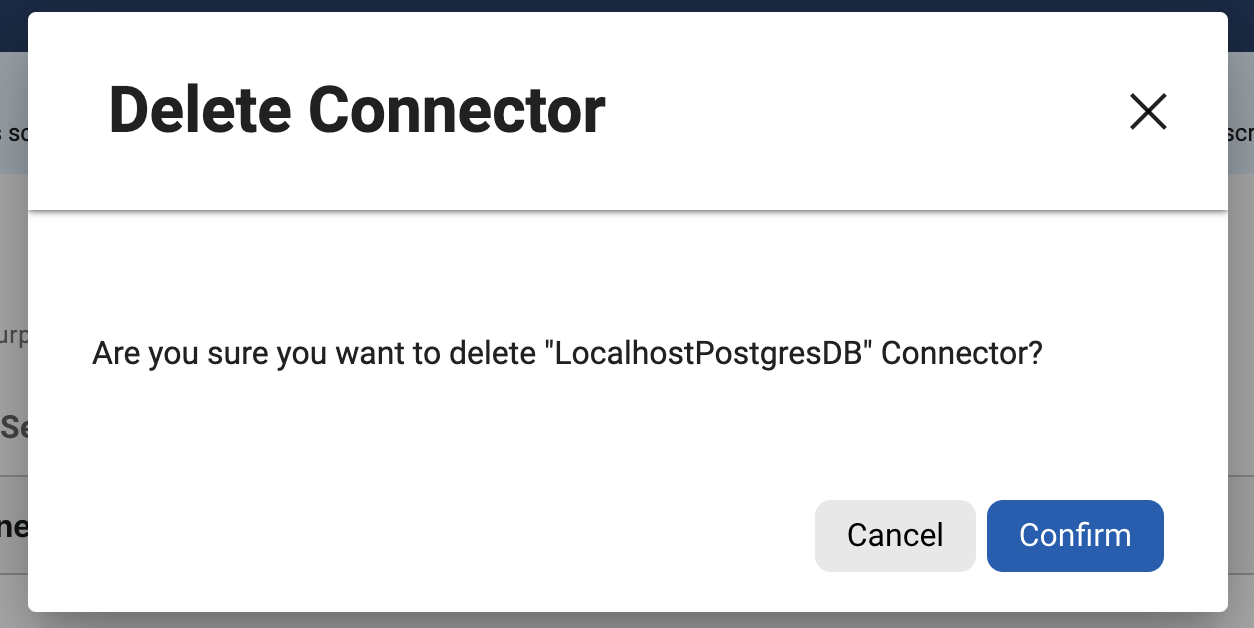
On clicking Delete, it will prompt for confirmation. Click on Confirm to delete the connector.