To view a list of all search expressions, Navigate to Settings > Expressions. By default, the Search Expressions tab is selected and all the search expressions will be displayed.
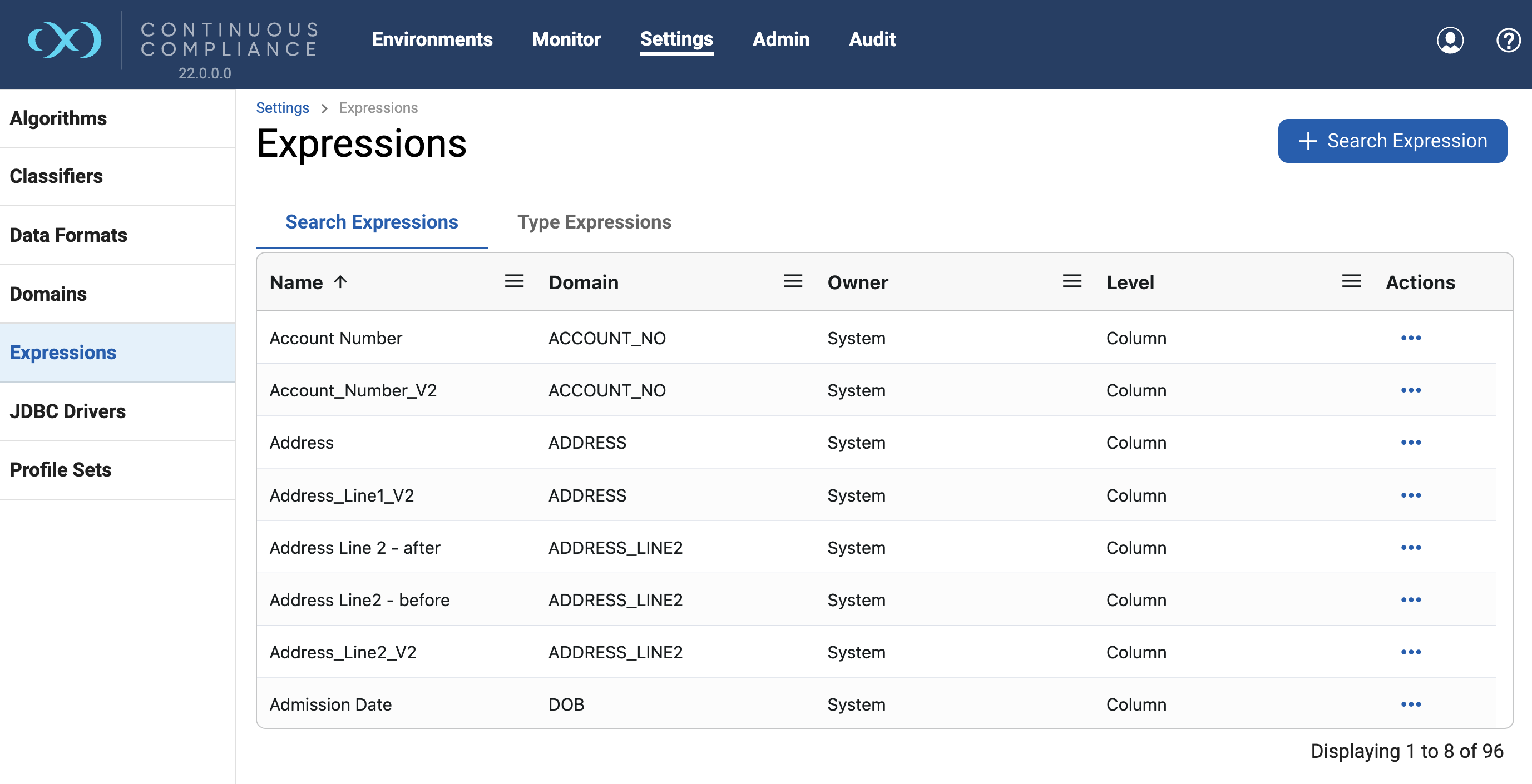
The search expressions on the screen can be filtered or sorted by the various informational fields by clicking on the respective field. More information on grid filtering and sorting can be found here.
-
Sortable fields are Name, Domain, and Level.
-
Filterable fields are Name, Domain, Owner and Level.
-
The
profile-expressions/searchendpoint also allow for searching and filtering of profile expressions. More information on syntax can be found at API Calls for Searching and Filtering.
Adding new Search Expression
-
Click the + Search Expression button from the top-right corner above the Search Expressions grid.
-
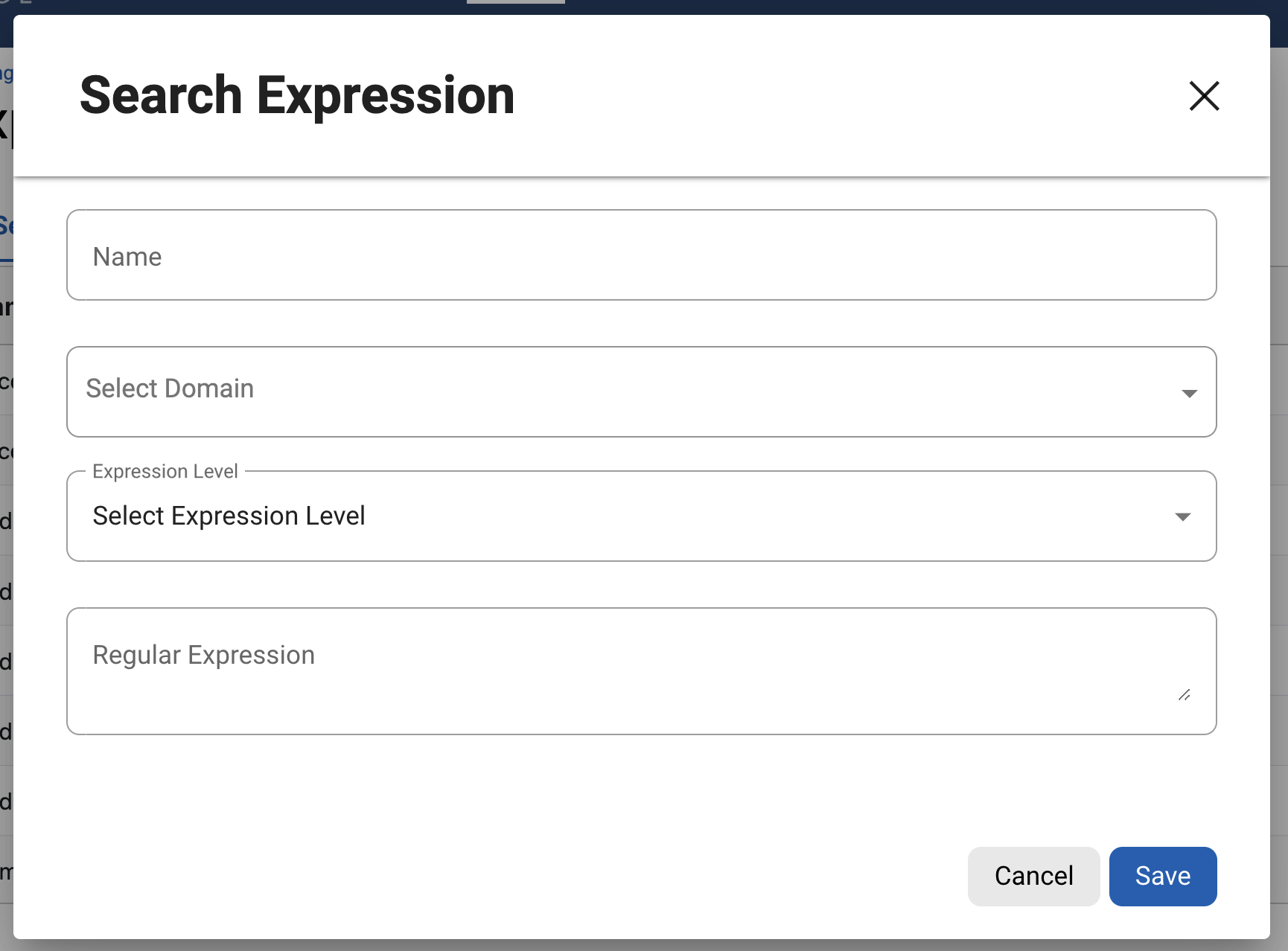
Enter the Expression Name. The name used to identify this expression as part of a Profiler Set.
-
Select a Domain from the Domain dropdown.
-
Domains are used by Profiling jobs to determine the masking algorithm to apply to your sensitive data. When an Expression is matched, the Profiling job will associate the specified Domain with the sensitive data.
-
The Masking Engine comes out of the box with over 30 pre-defined domains. For more information on domains, refer to the Managing Domains article.
-
-
Select an Expression Level for the Expression
-
Column Level: To identify sensitive data based on column names.
-
Data Level: To identify sensitive data based on data values, not column names.
-
-
Enter the Regular Expression. The regular expression used to identify sensitive data.
-
Click Save to create the expression.
Modifying Search Expressions
Users can perform 4 types of action on this screen by clicking the (…) button to the right of the corresponding row under the Actions column.
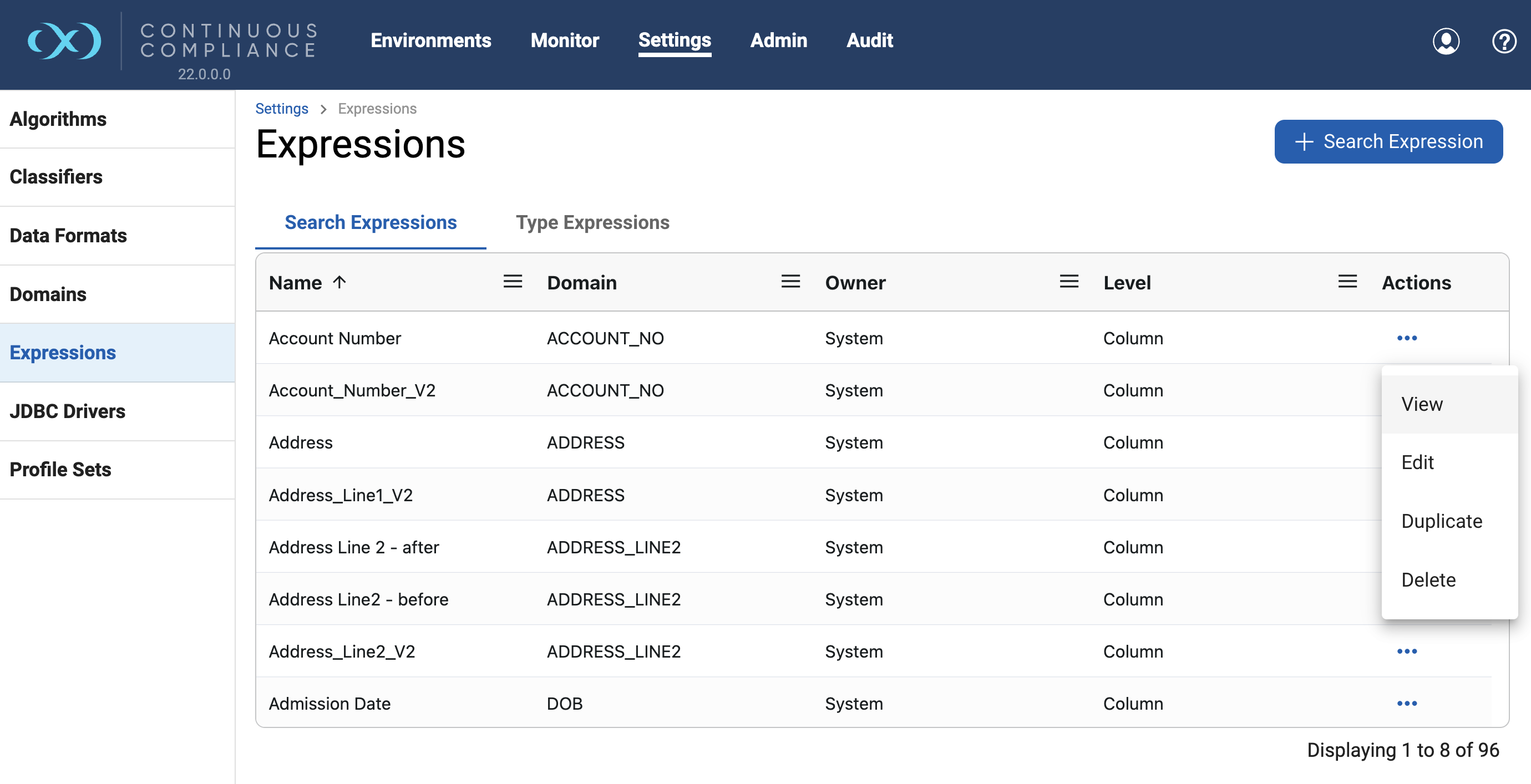
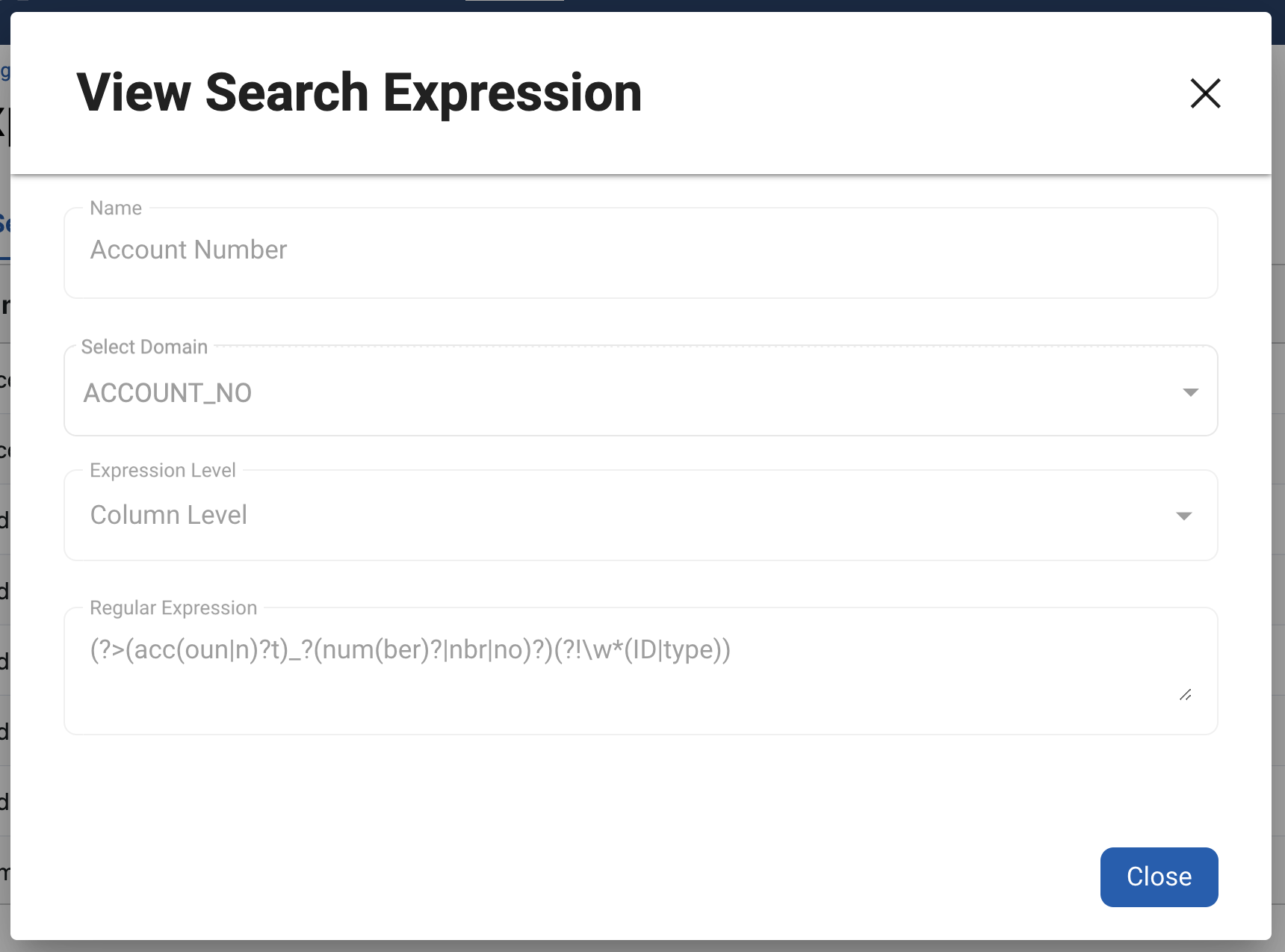
View Search Expression
Every field on the dialog will be disabled when the View action is selected.
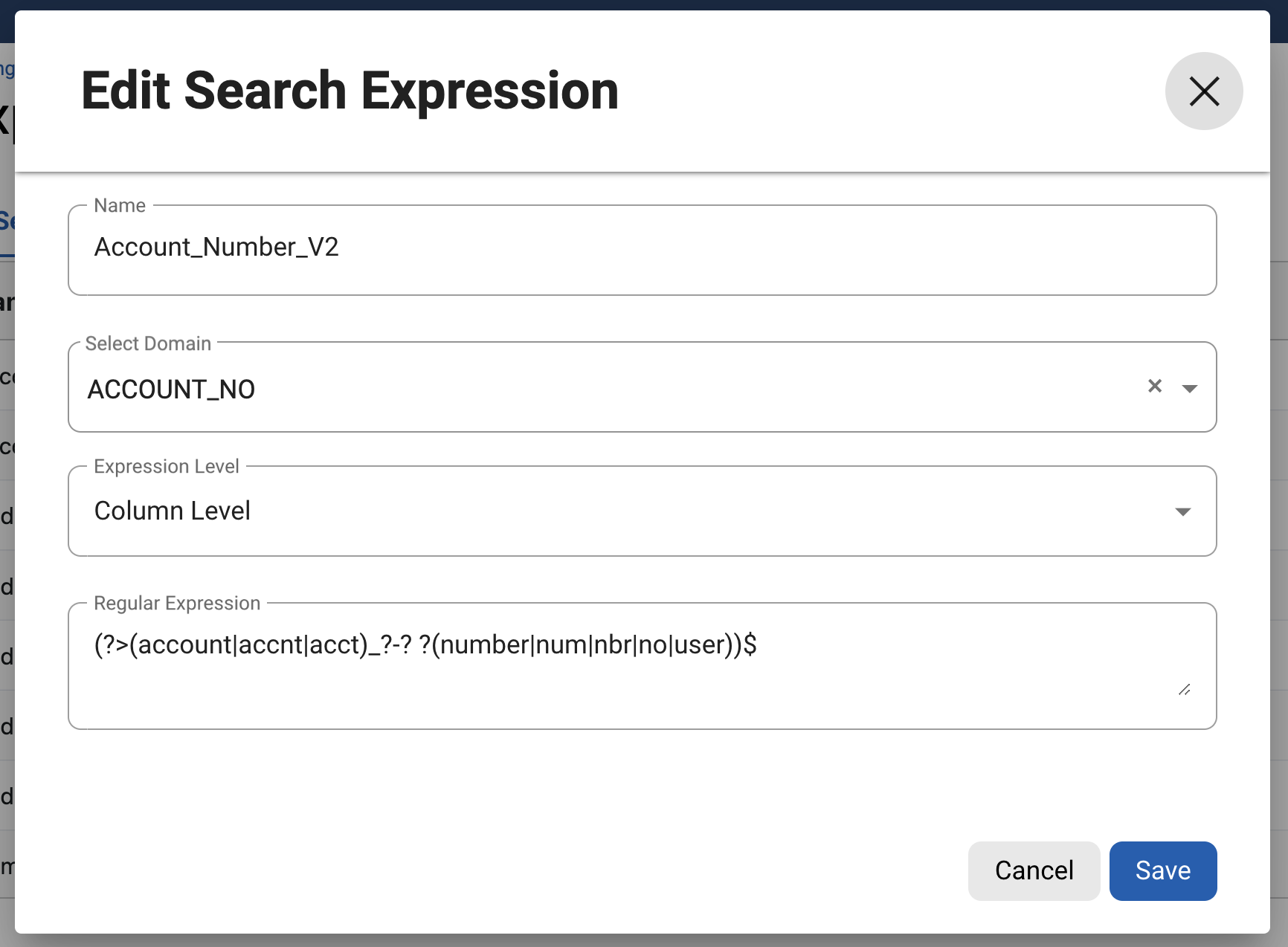
Edit Search Expression
On Clicking Edit action, a dialog will appear for editing the search expression.
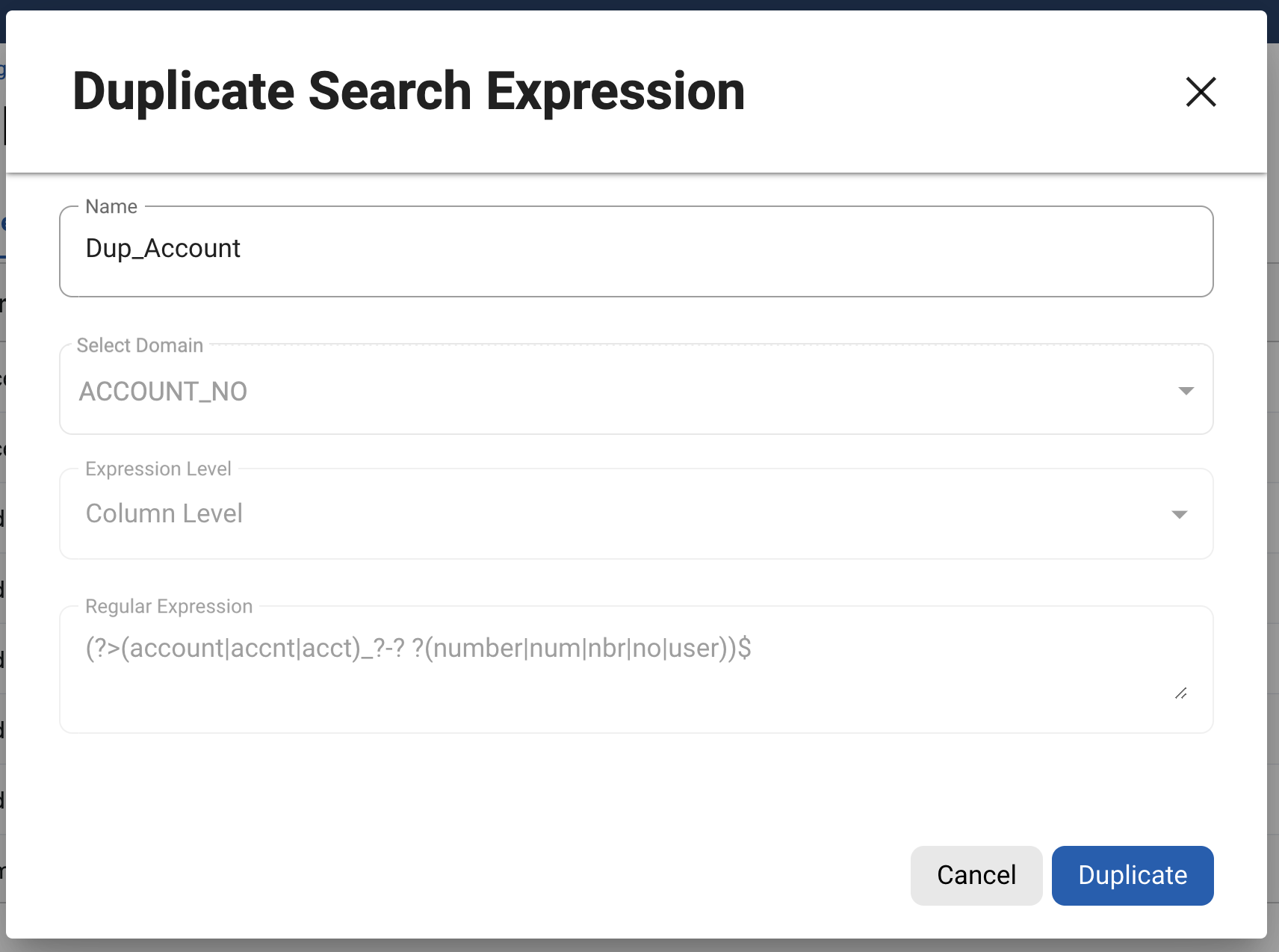
Duplicate Search Expression
On selecting a duplicate option, details will be pre-filled to the new search expression dialog, and the user can give a new name and duplicate the search expression.
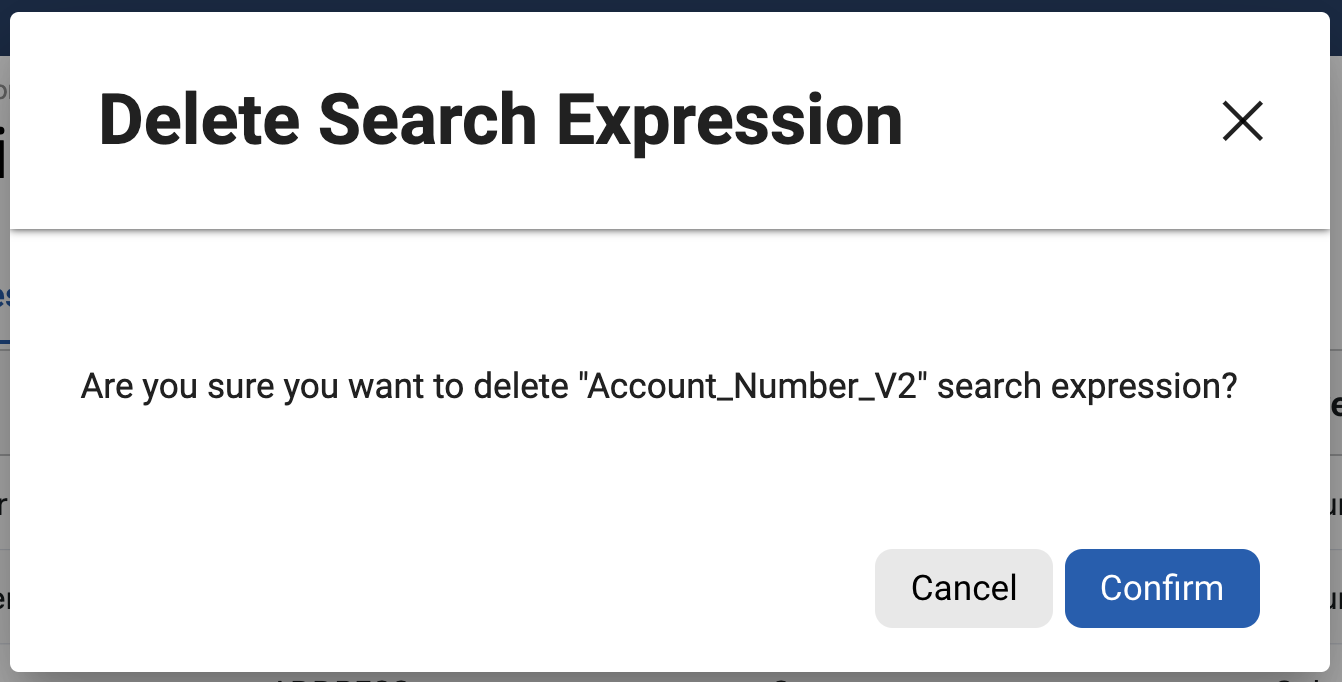
Delete Search Expression
On clicking Delete Action, it will prompt for confirmation. Click on Confirm to delete the expression. Deletion will be blocked if the expression is currently assigned to one or more profile sets.